
You can find an app publicly available in Apple’s App Store for almost everything you need to do. In fact, in most cases, you will be presented with multiple options for the same purpose.
According to Build Fire statistics, the App Store is composed of 1.96 million applications as of 2022. But sometimes, you need an app that is not included in this massive catalog. As a result, to use such apps, you have to use iTunes to install IPA on the iPhone.
However, the procedure to install an IPA on iPhone is no way as simple as installing a regular app from the App Store. If you are someone who doesn’t know how to install an IPA on your iPhone, or you are not clear about what an IPA is, you are at the right place. This blog is a step-by-step guide to you with everything you need to know on how to install an IPA on an iPhone.
What is an IPA File?
To fully understand how to install an IPA on an iPhone iOS 14 or other devices, you need to know what an IPA file is in the first place.
Any file with an IPA extension is basically an iPhone file used to store bits of data by different apps on your iOS devices. You can consider an IPA file as the iOS equivalent of ZIP files since both function as data containers. However, creating an IPA file is comparatively much more complex.
No matter the kind of app they are used for, the structure of every IPA file is always the same. They contain a JPEG or PNG image used for the icon of the file and a Payload folder where all data is stored. IPA files are built only for iOS operating systems, and you cannot use them on Windows, macOS (Intel), android, etc.
Why Install an Internal App IPA on iPhone?

People want to distribute apps outside the Apple Store for primarily two reasons:
- Testing App before Launch: Before an app is launched on the App Store for public use, it is tested by the app developers. There can be several bugs and glitches in the application, which can only be found by actually using it. So, before the public release, developers look for a small group of subjects to test the application and figure out if it functions properly. To distribute the app for testing, they usually employ this method.
- In-house Use: Sometimes, apps are specifically designed to be used by members of certain organizations or businesses. Such applications are created to fulfill the requirements of one particular group, so there is no point in making them available to the public. Moreover, many schools and offices use apps like these to configure a large number of devices simultaneously. Hence, the members have to install IPA on iPhones using iTunes.
How to Install IPA on iPhone
Now that we have gone through the basics of IPA and the purposes of installing it, it is time to go through the process of installing an IPA on an iPhone iOS 14.
Before we start, there are two things you need to be clear about:
- To install an internal app, you need to enroll in the Apple Enterprise Developer program.
- Installing IPA files using iTunes is not possible if you use iTunes 12.7 or newer versions.
Step 1: Upload Your File on an Online Drive
The first thing you need to do to install an IPA on iPhones is to host the file somewhere so users can download it. For this purpose, you can use any online drive service such as Dropbox or Google Drive.
Step 2: Download IPA File
All the users need to download the IPA file on their computers from the drive it is being hosted on.
Step 3: Open iTunes
The next step is to open iTunes on your PC. It is a software developed by Apple and is used to organize and set up the iPhone. If you do not have it already installed, click on the following link to download it: https://www.apple.com/itunes/
Step 4: Plug In the Device You Want to Download it on
Next, you will need to plug in the iPhone device you want to install the IPA file. You can do this by using a USB to Lightning (or any other cable compatible with your computer and the iPhone). Doing so will allow iTunes to connect and sync with your iPhone.
Step 5: Drag and Drop the IPA file on the iPhone’s Listing
Now we are moving toward the most crucial steps that will answer your question, “how to install IPA files on iPhones?” After plugging the phone in, you will be able to see it in the library section of iTunes at the side menu.

Locate the IPA file you downloaded from the drive, then drag and drop it here on your device’s information section in iTunes. This will start the installation process of the file on your iPhone. If you unlock your device, it will appear on the phone’s screen.
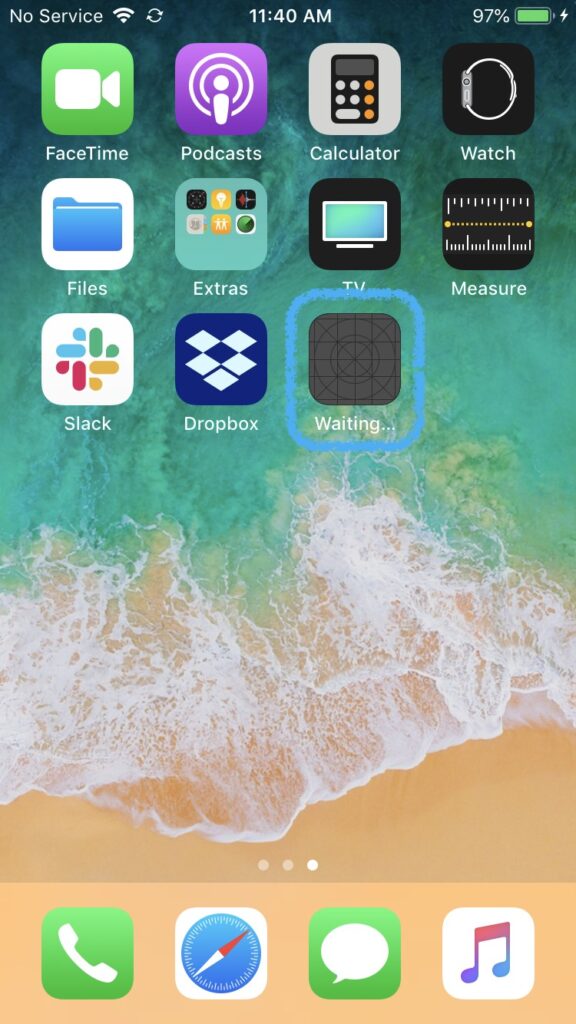
Once the installation is complete, eject your iPhone by clicking on the eject symbol in iTunes and unplug it.
Step 6: Manually Trust the App on Your iPhone
Although the app has been installed on the iPhone, you won’t be able to use it yet. You will have to manually trust the app by following these steps:
- Open the Settings app, and navigate to General and then Device Management. You will be able to see the internal app’s developer name under the Enterprise App.
- Tap on the developer’s name.
- Now click on the Trust *Developer Name* option to trust the app manually. Make sure you are connected to the internet while establishing trust.
Doing so will allow you to use the app installed with the IPA you downloaded. You will have to establish the manual trust with a developer just once, which means you can use more apps by this specific developer straight away after installing, without having to establish the trust again.
How to Create an Apple Enterprise Account

Now that we are done answering the question on how to install an IPA on the iPhone iOS 14, let’s briefly go through how to make an Apple Enterprise Account, which is absolutely essential to install an internal app on any iPhone.
Note: Only the developer organization of the Internal App is required to make the Apple Enterprise Account.
- Click here to visit Apple’s enrollment for the Enterprise program
- After reading the “What You Need to Know” section, click on the Start Your Enrollment button at the bottom.
- Confirm your Apple ID, select your entity type, and click Continue.
- You will be required to select the authority type you have in your organization.
- Fill out the information form and enter all the data required. Verify and proceed
Once you have filled out the form, Apple will verify the provided information and finalize your enrollment in the program. Remember that only a legally-verified organization can enroll in this program.
Takeaways
Installing an IPA on iPhone devices is not a difficult task, and the entire process can be completed within minutes following the given guidelines. However, designing an internal app from scratch and creating an IPA file needs some technical skills, and only experts can do it.
If you are new to this business and you need professional assistance regarding developing and designing an Apple application, feel free to contact us at Arturo Digital. We are an established marketing and software development firm, dedicated to helping our customers elevate their business to new heights.
